Revolutionizing Connectivity: Wireless Broadband in Malaysia with Reyee Switches & Access Points
January 19, 2025
Reyee Router vs Mesh Reyee WiFi: Which Is Better for Your Home?
January 30, 2026Slow WiFi can sometimes be a setup problem, not just an internet plan problem. If your signal is weak in certain rooms, devices fight for airtime, or your router sits in the wrong place, speeds drop fast. A Reyee router can deliver solid performance, but you’ll get the best results when you set it up with coverage and stability in mind.

Use this checklist to get fast, reliable WiFi at home or for a small business.
Step 1: Find The Best Location For Your Reyee Router
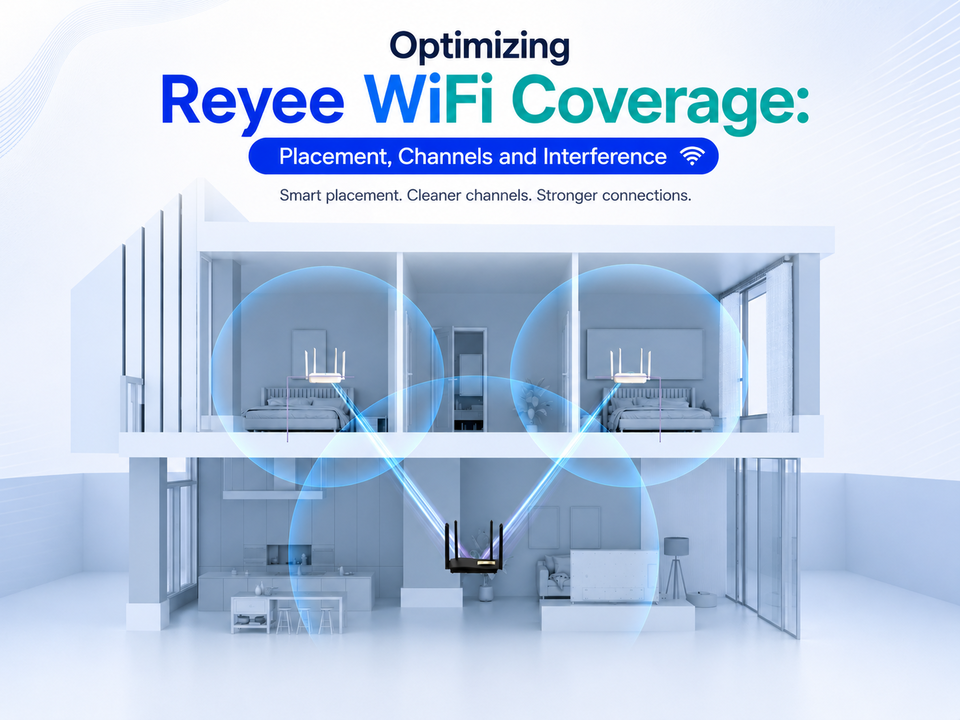
Start with location. Put the Reyee router near the center of the space, higher up and in the open, and away from sources of interference such as thick walls, metal racks, and microwaves. If you have multiple floors or lots of concrete, plan for extra access points or mesh later. One router can’t bend physics.
Step 2: Connect And Set Up Everything Cleanly
- Connect the fibre modem/ONT to the WAN/Internet port on the Reyee router.
- Power it on and wait for the lights to stabilize.
- For first-time setup, connect a laptop via a LAN cable if you can (it helps avoid interruptions).
Step 3: Finish The Basic Setup And Secure It
Most Malaysian fibre setups use DHCP from the modem, so the router usually gets internet once connected. Then do these three must-dos:
- Set your WiFi name (SSID)
- Set a strong WiFi password
- Change the admin password for the Reyee router dashboard
If you see separate 2.4GHz and 5GHz options, keep them separate for control, or use one name for simpler roaming.
Step 4: Use Settings That Make WiFi Faster For Your Needs
Chasing a perfect speed test is less useful than making the network stable when everyone’s online. A practical Reyee router setup includes prioritizing significant traffic (video calls, work devices, POS systems), limiting bandwidth hogs (big downloads, streaming boxes), and keeping visitors separate with guest WiFi.
If you run a café, clinic, office, or tuition center, guest WiFi is essential. Some Reyee gateways also support captive portal-style guest access and app or web blocking, helping keep traffic under control and protecting your main network.
Step 5: Fix Dead Zones With Mesh Or Access Points
If some areas are still weak, don’t just “turn it up.” Add coverage. Pair your Reyee router with additional Reyee access points to keep devices connected as you move around. Place the extra unit where the existing signal is still decent, then let it extend coverage forward.
Step 6: Test, Tweak, And You’re Done
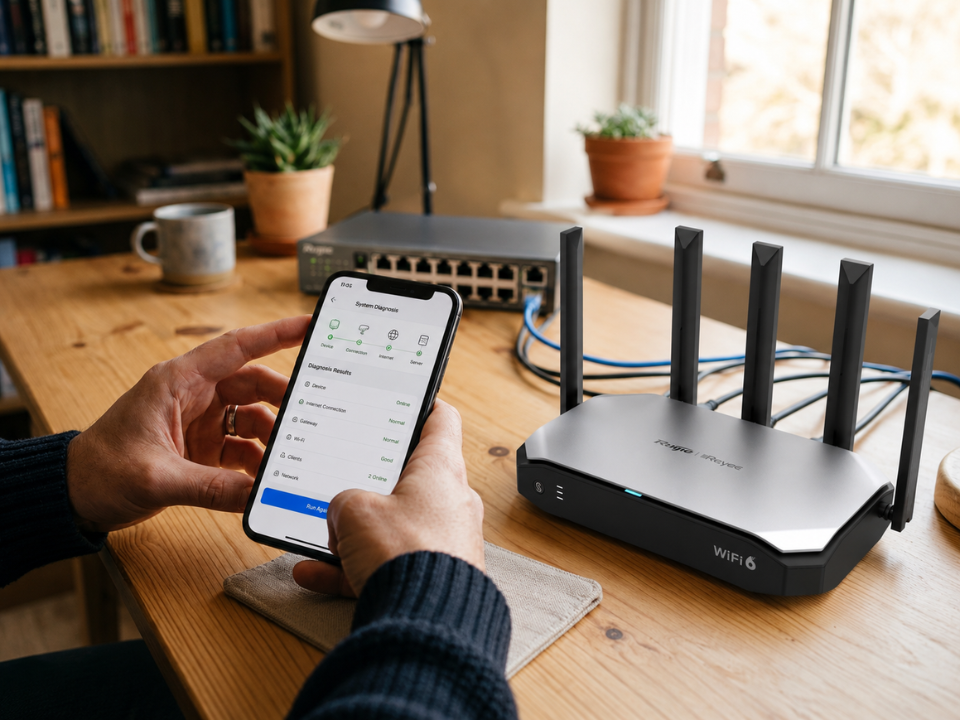
Do a quick test: stream or video call in the farthest room, run a speed test near the Reyee router, then connect your busiest devices and watch for lag. If performance is inconsistent, move the router first. A small relocation (higher, more open, more central) often beats any advanced tweak. Also, check that your modem isn’t broadcasting a competing WiFi network with a similar name.
Consider Uwave For Your Reyee Setup
If you want the right gear and local help, Uwave is the perfect partner. As a commercial WiFi router importer and distributor in Malaysia, we have an extensive selection of wireless routers and broadband options. We offer brands like Ruijie, Reyee router products, and Ubiquiti so that you can build a complete network.
We also share our expertise and support by running hands-on workshops that teach practical Reyee features. That means you can choose a Reyee router that matches your space, get advice on coverage (home, restaurant, or industrial site), and have a local team to call when you want the network to stay fast and stable.