Network problems always show up at the worst time. One minute, everything’s fine; the next, your Zoom call freezes or the office printer “can’t be found.” Before you start unplugging random cables, use this quick troubleshooting flow. It’s built for the two most common pieces of gear in small homes and offices: the Reyee router and the Reyee switch.
1. Do A 60-second “Where Is The Problem?” Check
Start by determining whether the issue is with the internet, WiFi, or a wired LAN.
No one has internet (WiFi + cable both fail): likely modem/ISP or router WAN issue
WiFi is bad but wired works: likely wireless settings, placement, or interference
Some wired devices are down: likely the switch, cable, or a specific port
Now look at the lights:
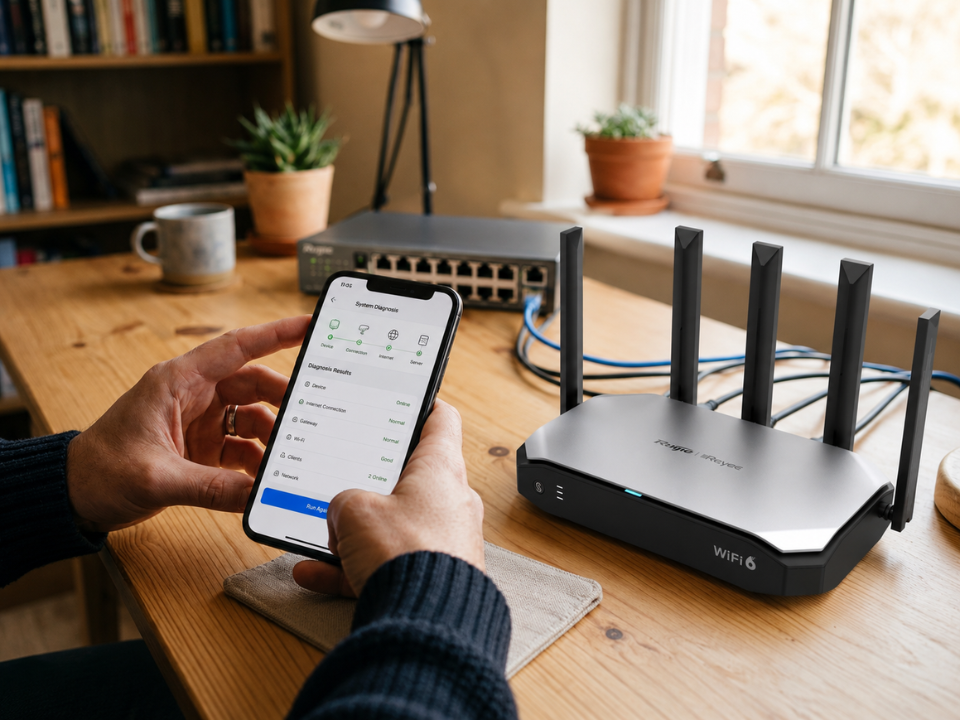
On the Reyee router, check if WAN/Internet shows a normal link
On the Reyee switch, check port LEDs for the devices that are down
This one minute saves you twenty minutes of guessing.
2. If The Reyee Router Has No Internet
Try these quick fixes in order:
A. Power-cycle The Right Way
Turn off both the modem/ONT and the router
Turn on the modem/ONT first and wait until it’s completely online
Turn on the Reyee router
A lot of Malaysian fibre setups “remember” the last connected device. This resets the handshake cleanly.
B. Swap The WAN Cable
A bad cable is, unfortunately, a common occurrence. Use a good, well-known cable to connect the modem/ONT to the Reyee router WAN port.
C. Check WAN Type (DHCP vs PPPoE)
If your plan uses PPPoE, a wrong username/password means “connected to router” but no internet. If you’re not sure, check your ISP documents or ask whoever installed the line. (If everything was working yesterday and you didn’t change settings, you can usually skip this.)
D. Quick DNS Test
If websites don’t load but apps partially work, change the DNS settings on the Reyee router to a reliable public DNS and test again. It’s a fast way to rule out “DNS weirdness.”
3. If WiFi Is Slow But Your Internet Plan Is Fine
This is where most “my WiFi is slow” complaints live.
A. Test Wired vs WiFi
Plug a laptop into the Reyee router or switch and run a speed test.
If wired is fast, but WiFi is slow, your internet is fine. It’s a WiFi coverage or interference problem.
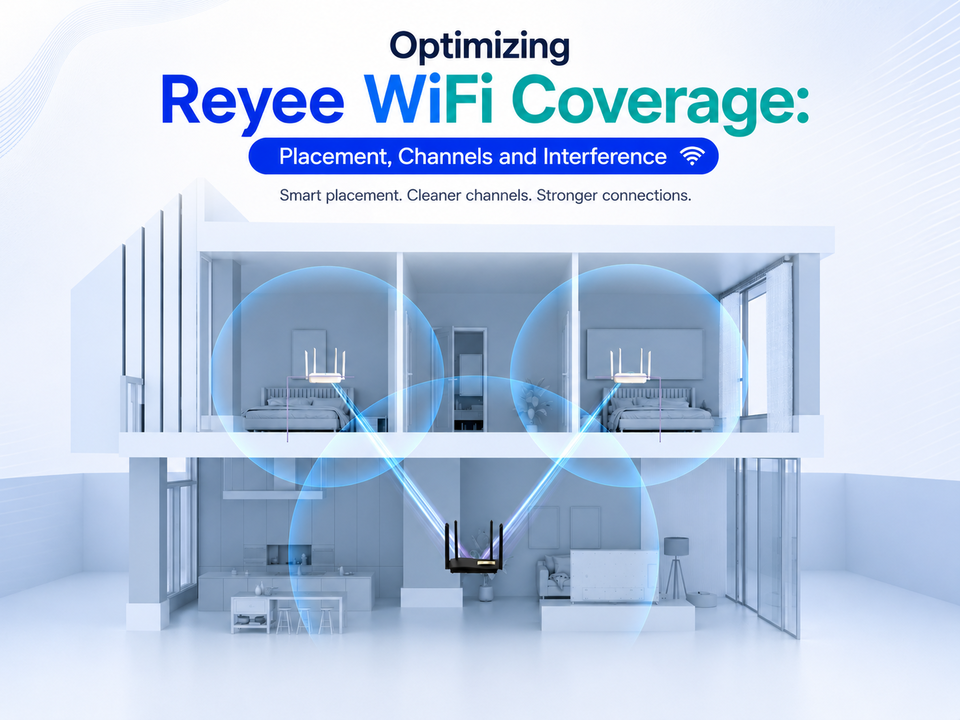
B. Move The Reyee Router 1–2 Meters
Sounds too simple, but moving your router into the open and higher up often fixes weak rooms instantly. Avoid putting it behind TVs, inside cabinets, or next to metal objects.
C. Use 5GHz For Speed, 2.4GHz For Reach
If you’re close to the Reyee router, 5GHz usually feels faster. If you’re far away or behind thick walls, 2.4GHz may be more stable.
D. Reboot And Update Firmware
A quick reboot clears stuck processes. A firmware update can fix stability and security issues, especially if you’ve never updated since installation.
4. If Devices Keep Disconnecting Randomly
Intermittent drops can look like an internet problem, but it’s often local.
Too many devices on a single WiFi band: Try temporarily splitting SSIDs (2.4 GHz and 5 GHz) to test stability
Overheating: Make sure the Reyee router has airflow and isn’t trapped in a hot cabinet
Neighbour WiFi congestion: Changing channels (especially on 2.4GHz) can reduce conflicts
5. Reyee Switch Problems: Quick Fixes For “Wired Is Down”
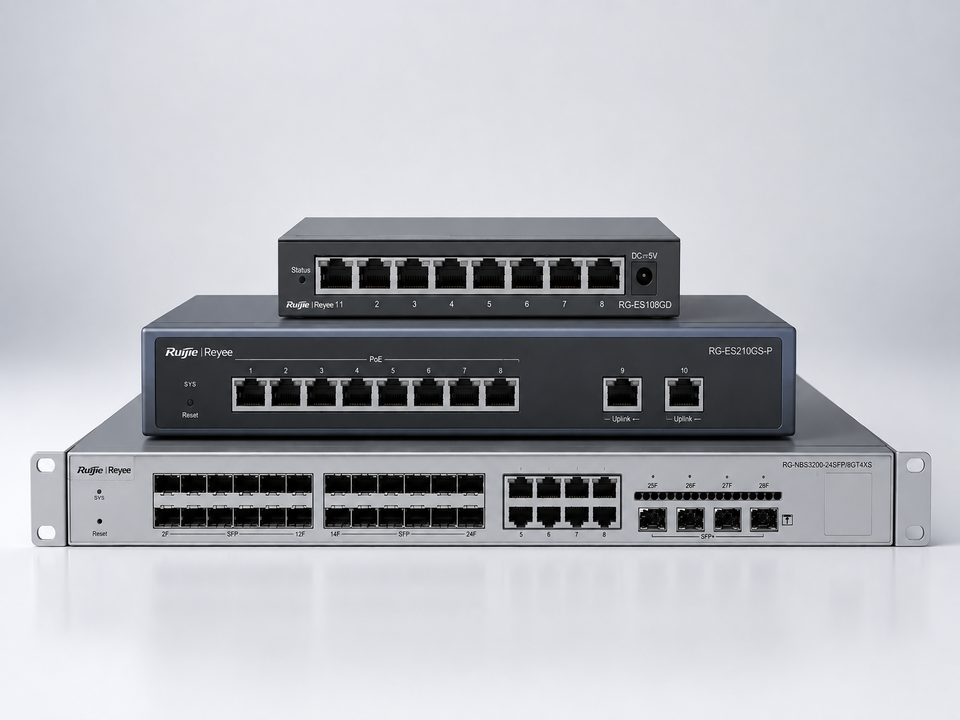
If some devices connected through your network switch are offline:
A. Is It Only One Device Or One Whole Area?
One device down: Swap the cable and move it to a different port on the Reyee switch
Multiple devices down: Check the uplink cable from the switch to the router
B. Port LED Is Off?
That usually means no link. Try:
a different cable
a different port
a different device (to confirm the port works)
C. PoE Device Not Powering On (AP/CCTV/IP phone)
Not every Reyee switch port is PoE. Make sure the device is on a PoE-capable port and that your switch has enough PoE power budget for all devices. If it’s right on the edge, disconnect one PoE device and test again..
D. Watch Out For Loops
Accidentally connecting two switch ports can cause a loop and slow everything down. If the whole network suddenly becomes unusable, unplug any “extra” cables between switches first.
6. When To Reset (And How Not To Regret It)
If you changed settings and now nothing makes sense, a factory reset can be the fastest fix. Before you do it, write down:
ISP login (if PPPoE)
WiFi name/password
Any VLAN or special configs on a managed Reyee switch
Reset is a last resort, but it’s sometimes the cleanest way back to a stable network.
Consider Uwave As Your Professional Reyee Support
If you’re tired of trial and error, Uwave is the perfect partner to help you with both your Reyee router and switch issues. As an established importer and distributor of commercial WiFi routers in Malaysia, we are focused on providing customers with uninterrupted connectivity.
We offer dedicated solutions and support for all Reyee networking products, from routers to access points and switches, making it easier to match the right gear to your setup. And if you’re interested to learn the “right way” to manage and troubleshoot your own setups, we run hands-on Reyee training workshops..