Reyee Switch Explained: Managed vs Unmanaged for Small Offices
February 9, 2026
Troubleshooting Reyee Router and Switch Issues: Quick Fixes That Work
March 2, 2026Good WiFi isn’t just about buying a powerful router. Most coverage problems come from three things: where the device is placed, how crowded your WiFi channels are, and interference you didn’t even know existed. If you’re using a Reyee WiFi router at home or in a small business, a few smart adjustments can make your network feel faster without changing your internet plan.

Here’s how to optimize your WiFi coverage in a practical, step-by-step way.
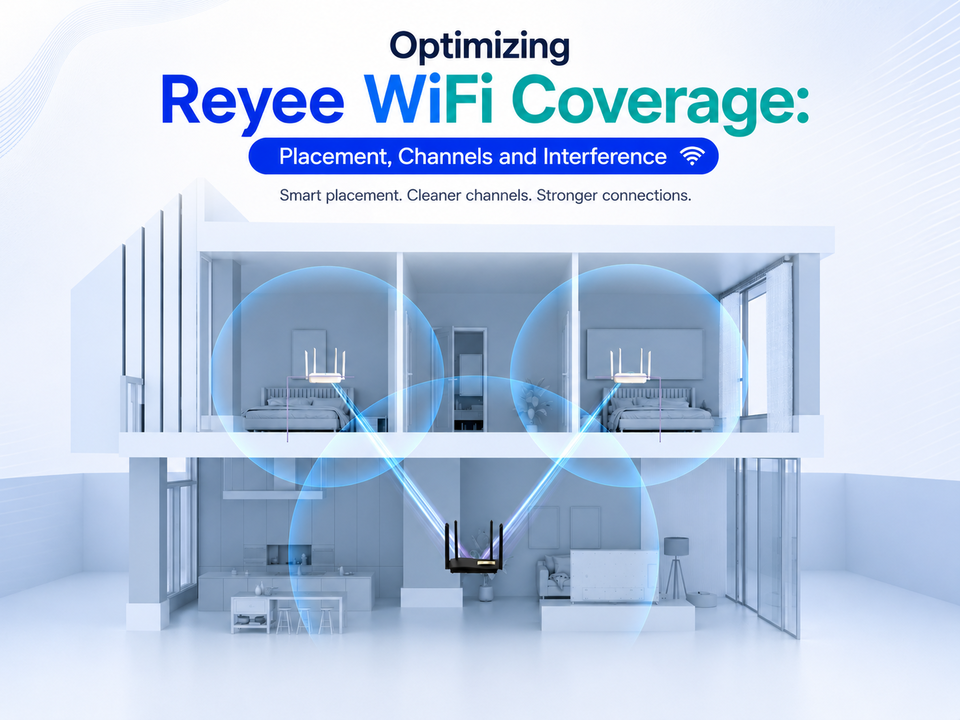
1. Placement: Your Router Location Matters More Than You Think
WiFi behaves like light. The more obstacles it hits, the weaker it becomes. That’s why placing your primary Reyee WiFi device in the right spot is the first and most significant win.
Best placement rules for routers:
- Put it near the center of the home, not at one end
- Place it higher (on a shelf or wall mount), not on the floor
- Keep it in the open, not inside cabinets or behind a TV
- Avoid placing it next to large metal objects (fridges, filing cabinets, server racks)
If your modem is in a bad location (like a storeroom or near the front door), consider running a longer Ethernet cable so the Reyee WiFi router or central node can be placed in a better location. That one move often beats any “boost mode” or random setting tweak.
2. Understanding 2.4GHz vs 5GHz
Most Reyee WiFi setups offer both 2.4GHz and 5GHz bands.
- 2.4GHz travels farther and passes through walls better, but it’s slower and gets crowded easily
- 5GHz is faster and cleaner, but it doesn’t travel as far and struggles more with walls
A simple approach to consider is to use 5GHz for devices close to the router (TV streaming, gaming, work laptop) and let 2.4GHz handle longer-range devices (smart home gadgets, devices at the far end of the house).
If your network uses a single combined name (single SSID), it’s convenient, but some devices may “stick” to 2.4 GHz even when 5 GHz is available. If you want more control, split the names temporarily while testing, then decide what works best for your home.
3. Channels: The Traffic Lane Your WiFi Uses
In many neighbourhoods, WiFi networks overlap. That means your Reyee WiFi device might be fighting your neighbours’ routers on the same channel, especially on 2.4GHz.
For 2.4GHz, the practical channel choices are usually 1, 6, or 11 (these overlap the least). If your router is on a crowded channel, speeds dip and latency spikes.
For 5GHz, there are more channels available, so it’s often less congested. Many routers can choose automatically, but if you’re in a high-density condo, manual selection can sometimes improve stability.
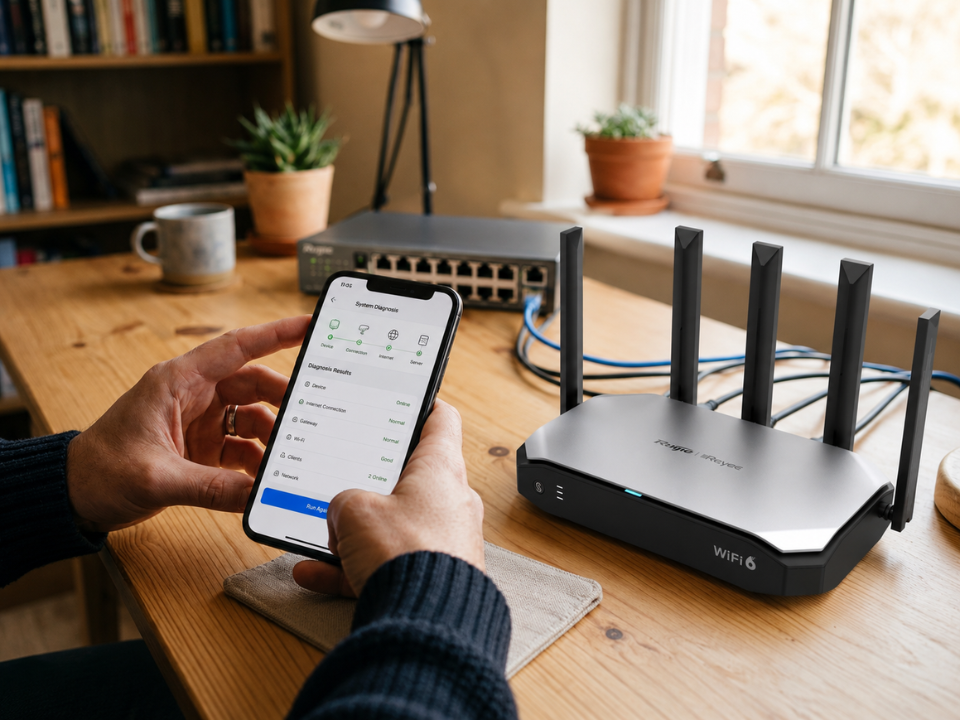
If your Reyee WiFi system has an app or dashboard that shows channel health or interference, use it. You’re looking for the least crowded channel, not the one with the highest number.
4. Interference: The Hidden WiFi Killer
Sometimes the WiFi signal is strong, but performance still feels bad. That’s often interference.
Common sources of interference:
- Microwaves (especially near kitchens)
- Bluetooth devices (speakers, older peripherals)
- Baby monitors and some wireless cameras
- Thick concrete walls, mirrors, and metal doors
- Aquariums (yes, water absorbs WiFi signals)
If your WiFi drops at specific times (like during dinner), check whether the Reyee WiFi router is near a microwave or an area with lots of electronics. Moving it even a few meters can change everything.
5. If You Have Dead Zones, Expand The Right Way
If you’ve done placement and channels but still have weak rooms, it’s time to add coverage. This is where mesh or additional access points help. Together with the Reyee WiFi router, adding extra nodes or access points creates a smoother blanket of coverage, rather than relying on a single device to push a signal through multiple walls.
A key placement tip for additional nodes: don’t put them in the dead zone. Put them halfway between the router and the dead zone, where the signal is still decent. That way, the system has a strong link back to the central unit.
6. Quick Final Checklist
Before you call it done:
- Reboot the router and test again
- Run a speed test in the main room and the farthest room
- Check for unknown devices hogging bandwidth
- Update firmware (security and stability improvements matter)
Choosing Uwave for Your WiFi Upgrade
If you want fast, well-planned WiFi, we at Uwave are here to help. As commercial WiFi router experts, we are experienced in serving the needs of homes, restaurants, and even large industrial buildings. We offer a wide selection of networking solutions, including Reyee, so it’s easier for you to build a complete setup instead of piecing things together.
In addition to products, we at Uwave also run hands-on workshops and training sessions to help you learn how to deploy and manage Reyee equipment properly. If your goal is strong, stable Reyee WiFi coverage with support you can rely on, Uwave is a solid partner to choose.
Related posts